![GLA088_Logo_Update-01 (1).png]](https://knowledgebase.glamadelaide.com.au/hs-fs/hubfs/GLA088_Logo_Update-01%20(1).png?height=49&name=GLA088_Logo_Update-01%20(1).png)
Content Aware Sidebars (also called Custom Sidebars) let us show specific sidebar content on selected pages, posts, or categories. They're perfect for targeted ads, promotions, or custom layouts. This process involves making and scheduling the ads in AdRotate, creating the sidebar, activating it in Widgets, and adding the correct AdRotate content.
STEP 1: Make the Ads in AdRotate
In HubSpot, go to the client's Custom Sidebar form submission.
-
Save all of the image files submitted (name them appropriately: the large one is MREC, the small ones are buttons 1 through 5).
- Copy + paste the target urls into a working list for your reference.
In WordPress, go to Media Library.
- Upload all the image files you saved.
- Once they have successfully uploaded, get the direct image link for each file.
- Place these links in your working list alongside their respective target urls (i.e. MREC target url, then MREC image url... button 1 target url, then button 1 image url... button 2 target url, then button 2 image url... etc)
In WordPress, go to AdRotate → Manage Adverts.
-
You'll be making 2 New Adverts here: one for the MREC, one for All Buttons.
MREC Advert:
- Click New Advert.
- Name your new advert: "[Year] [Event x Company] - MREC Ad"
eg: "2026 Gather Round x SATC Events - MREC Ad"
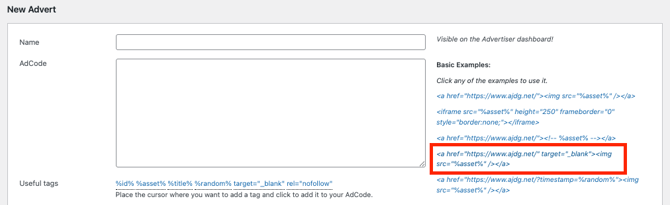
- On the right, click the second to last in the list of pre-made code templates - indicated below (see screenshot). The code template will automatically fill in the AdCode box.
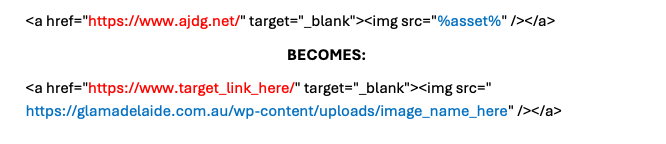
- Replace the text between quotation marks. DO NOT DELETE QUOTATION MARKS.
- The first text to replace is: https://www.ajdg.net/
Replace this with your MREC target url. - The second text to replace is: %asset%
Replace this with your MREC image link.
- The first text to replace is: https://www.ajdg.net/
- You will see a preview of the ad appear below. Click the ad to make sure the link is correct and it opens in a new tab.
- Scroll down and enable the checkboxes for Count clicks. and for Count impressions.
- Make sure the Status is "Enabled, this advert will be visible."
- Click Save advert.
All Buttons Advert:
- Click New Advert.
- Name your new advert: "[Year] [Event x Company] - All Buttons"
eg: "2026 Gather Round x SATC Events - All Buttons"
- On the right, click the second to last in the list of pre-made code templates. The code template will automatically appear in the AdCode box.
- Replace the text between quotation marks. DO NOT DELETE QUOTATION MARKS.
- The first text to replace is: https://www.ajdg.net/
Replace this with your Button 1 target url. - The second text to replace is: %asset%
Replace this with your Button 1 image link.
- The first text to replace is: https://www.ajdg.net/
- Press enter after the code in the AdCode textbox, then on the new line type: </br>
- This is called a 'line break', it makes your buttons stack on top of each other instead of appearing lined up side-by-side.
- Press enter to a new line, then click on the same pre-made code template to insert it again.
- Repeat the last three steps as many times as needed so that all buttons and target links are added
- 1) Replace template text
- 2) Add line break
- 3) Reinsert code template
- Repeat.
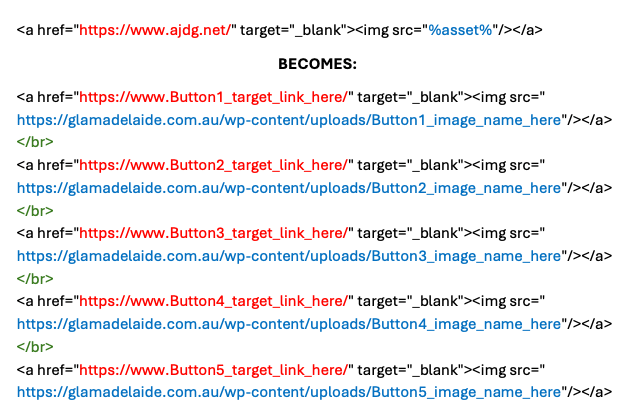
- Below you will see a preview of the buttons appear as you go through this process. When all buttons are added, click each one to make sure the links work and open in new tabs.
- Scroll down and enable the checkboxes for Count clicks. and for Count impressions.
- Make sure the Status is "Enabled, this advert will be visible."
- Click Save advert.
STEP 2: Schedule the Ads in AdRotate
Now that you have your two new adverts, you can create a single schedule for them both.
In WordPress, go to AdRotate → Manage Schedules.
- Click Add New.
- Name your new advert: "[Year] [Event x Company] - Sidebar Content Schedule"
eg: "2026 Gather Round x SATC Events - Sidebar Content Schedule"
- Set the Start Date to the day you want the sidebar to go live (if you want it live immediately, try setting this date to yesterday)
- Set the End Date to the day you want the sidebar to conclude, then set the End Time to 23 : 59
- Scroll past the advanced settings - DO NOT enable "Evenly spread impressions" options.
- At the bottom of the page you will find your new adverts for MREC and All Buttons listed. Select the checkboxes beside each advert.
- Click Save Schedule.
STEP 3: Create a new Custom Sidebar
In WordPress, go to Content Aware → Add New.
-
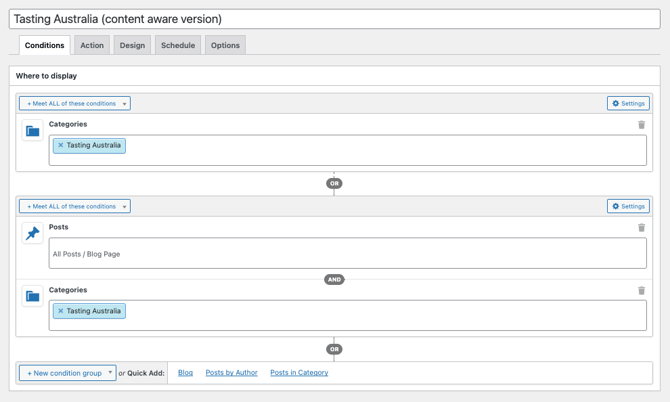
Conditions Tab: Choose where the sidebar should appear (specific pages, posts, categories, etc).
-
Action Tab: Choose which sidebar this new one will replace, and how it should behave.
-
Important: The sidebar you are replacing must have “Allow this sidebar to be replaced” ticked (this will be checked in the widgets step below).
-
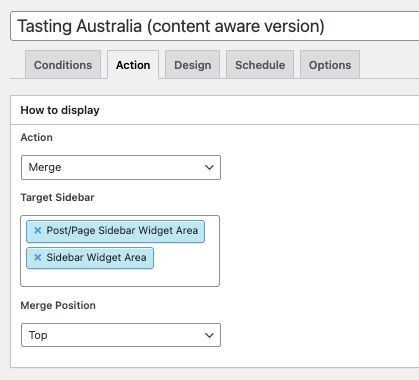
- Design Tab: Ignore.
- Schedule Tab: If needed, set a schedule for when the sidebar should be active.
- Options Tab: Ignore.
-
Click Create to save the sidebar.
STEP 4: Activate the sidebar in Widgets
Go to Appearance → Widgets.
-
Find your new sidebar in the list on the right. Make sure its switch is toggled to Active.
-
Double-check that the sidebar(s) you are replacing have “Allow this sidebar to be replaced” enabled.
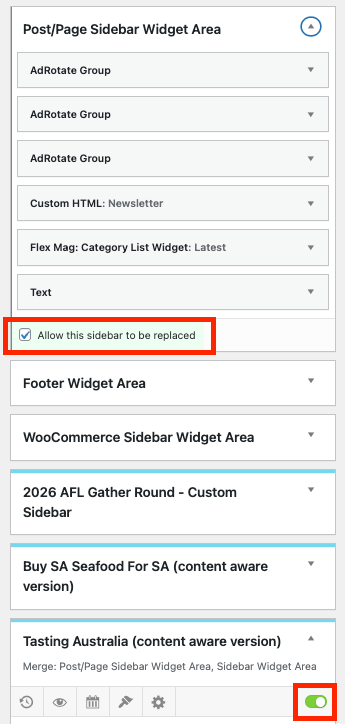
STEP 5: Add content to the sidebar
This is where you decide what actually appears in the sidebar. The most common Widgets we will use in a sidebar are:
-
AdRotate Advert (single image or group of images in one advert), or
-
AdRotate Group (rotating content that changes on refresh).
To add content to your new sidebar:
-
Find the widget you want on the left, either AdRotate Advert, or AdRotate Group.
-
Click and drag it into your new sidebar.
-
Select the correct Advert or Group from the dropdown.
- Do this again for any additional content that should appear in the sidebar (ie, first widget for the MREC advert, second widget for the All Buttons advert).
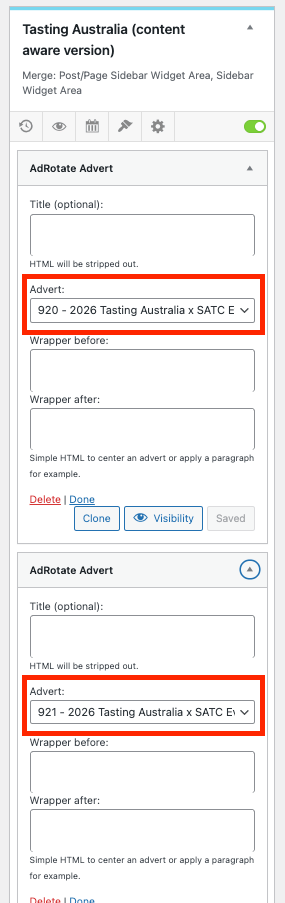
Final checks
-
Visit a page where the sidebar should appear and confirm it’s displaying correctly.
-
Check that it only appears on the pages you intended.
- Click on the ad and buttons to make sure links are working correctly + open in new tab.
- If something isn’t showing, recheck:
-
Page/Post/Category targeting rules (Conditions Tab)
-
Sidebar replacement behaviour settings (Action Tab)
- Active/'Able to replace' settings (Appearance → Widgets)
-