![GLA088_Logo_Update-01 (1).png]](https://knowledgebase.glamadelaide.com.au/hs-fs/hubfs/GLA088_Logo_Update-01%20(1).png?height=49&name=GLA088_Logo_Update-01%20(1).png)
Use this if your client bought a SOLUS and it's now time to report on how the email performed.
STEP 1
-
Open the MailChimp homepage dashboard here: https://us6.admin.mailchimp.com/
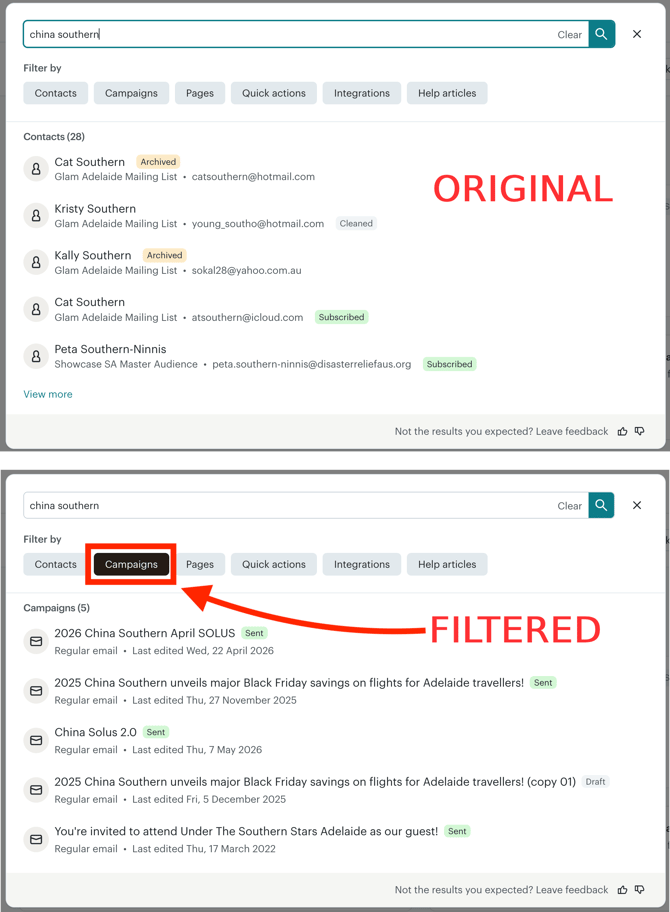
- Use the search bar at the top of the homepage to search for the name of your client's SOLUS email campaign.
TIP: If you are only seeing search results for contacts/subscribers, use the "Campaign" filter to get better results. See example in below images:
-
Click on the client's SOLUS record to view MailChimp's campaign report. Here is where you will find all of the data needed to complete the SOLUS page of your Client Report.
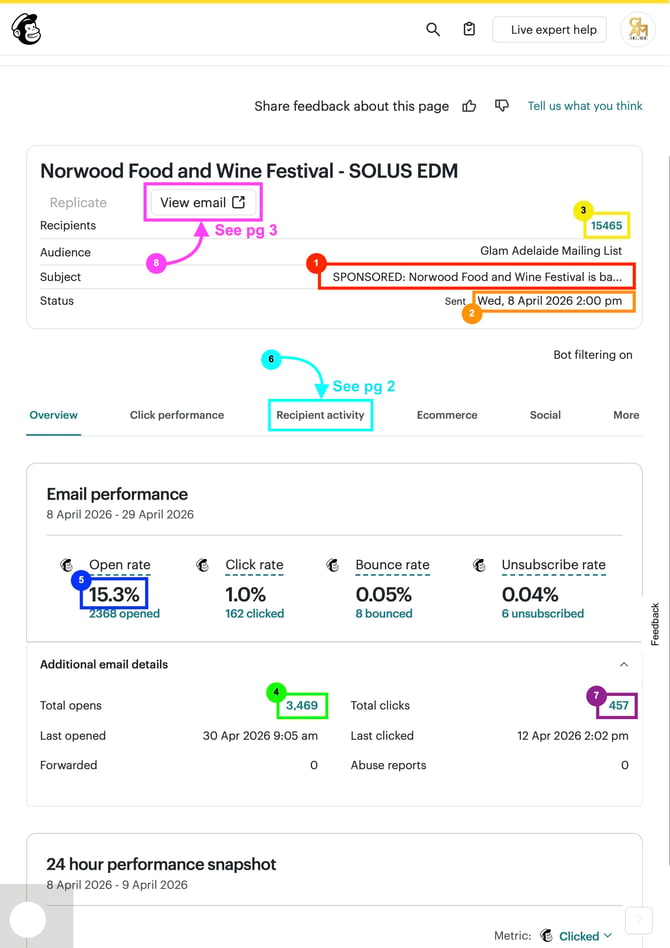
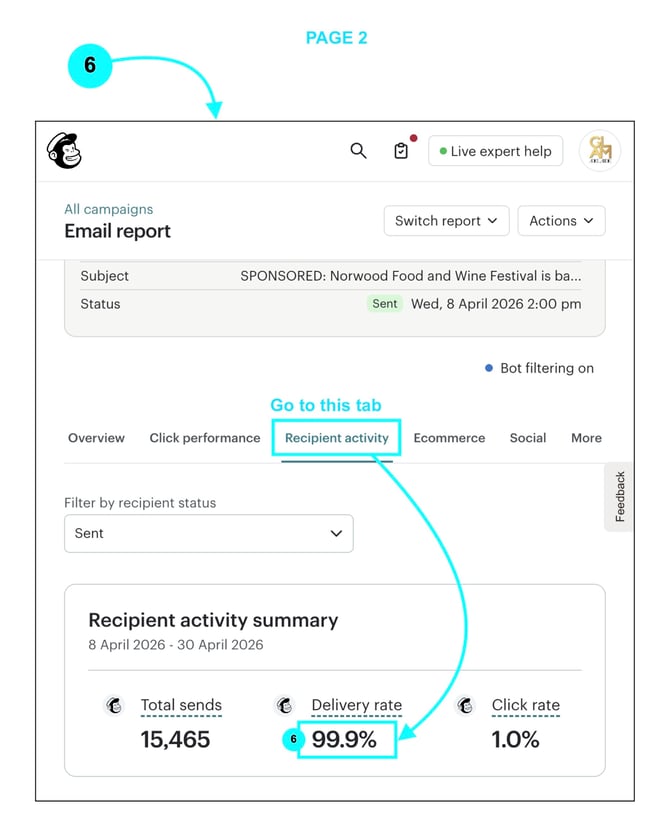
TIP: Use the screenshots below to help find the correct data for each SOLUS stat:
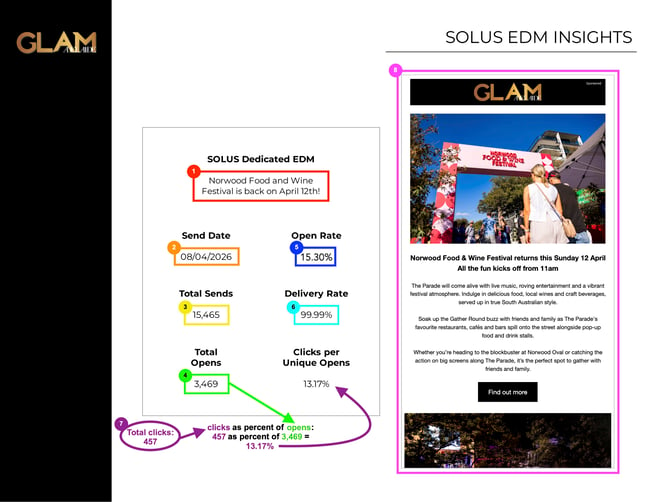
Above is the current layout of the SOLUS page in our Client Reports.
Here is a breakdown on what each of the stats in the above screenshot represent:
- Title: The subject line of the SOLUS email (remove the word "SPONSORED:")
- Send Date: The date on which the SOLUS email was sent to our subscribers.
- Total Sends: The total number of attempted sends for the SOLUS email.
- Total Opens: The total number of times the SOLUS email was opened by recipients.
- Open Rate: The percentage of recipients that opened the SOLUS email.
- Delivery Rate: The percentage of Total Sends that were successfully delivered.
- Clicks per Unique Opens: The total number of clicks recorded on the SOLUS email, expressed as a percentage of times the email was opened.
- You will have to calculate this figure using the following:
[Total Clicks] divided by [Total Opens] = [RESULT]
[RESULT] multiplied by 100 = XX.XX% <-final percentage figure to use.
- You will have to calculate this figure using the following:
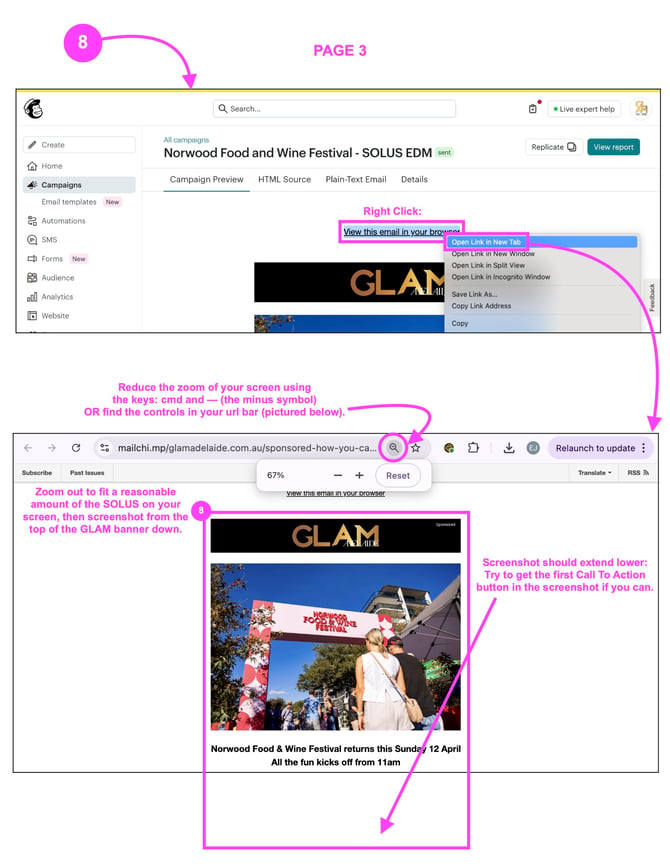
- SOLUS Screenshot: A snapshot of the SOLUS email content, as seen by recipients.
- You can take this screenshot by following the instructions in the below graphics.
Page 1:
Page 2:
Page 3:
Transfer the info found in MailChimp to the relevant fields in the report, and you're done!